
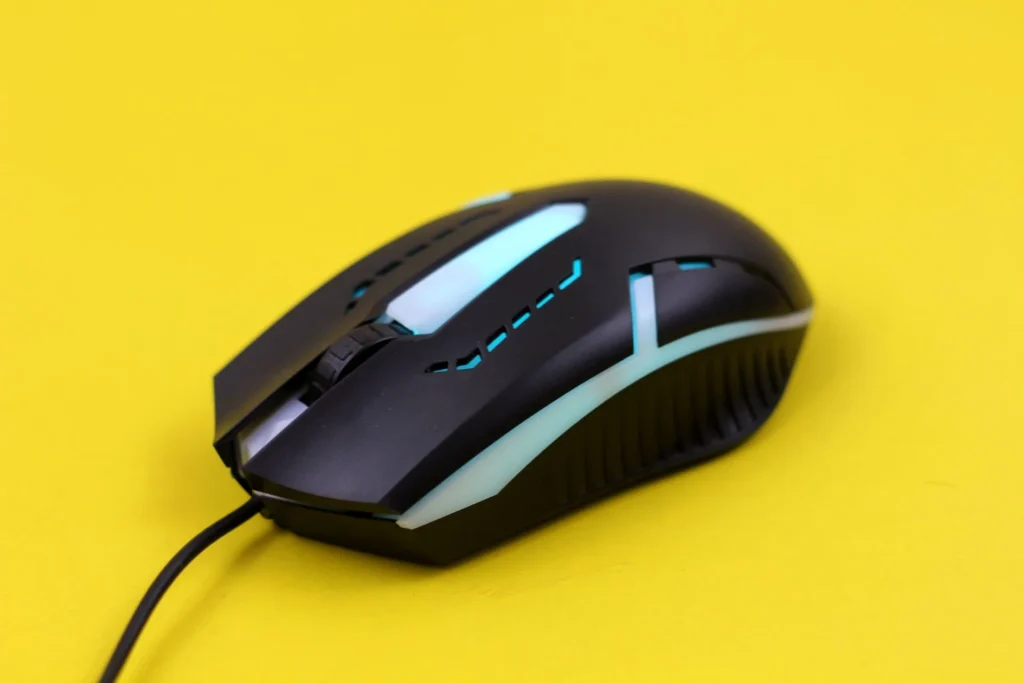
There is no single best mouse for CPS: a drag-clicking star can be mediocre for jitter, and a butterfly favourite is useless if its debounce is wrong. The right question is which mouse fits your technique. This guide answers it with verified specs, a dated price snapshot, and one warning — the ROCCAT Kone Pro is now buy-while-stock-lasts.
Prices in this guide are a snapshot checked on 23 November 2026, not fixed facts. Every price below names its source and its date, because prices move with sales, regions, and stock — a price quoted as fact in October may be fiction by December. Check the current listing before you buy anything here. Where no current price could be confirmed, this guide says so instead of guessing.
Read This First: The ROCCAT Warning
ROCCAT wound down new mouse production in 2024. That is the single most important fact about the Kone Pro and Kone Pro Air in late 2026, and the previous version of this guide never mentioned it. Here is what that means in practice, checked on 23 November 2026:
- Best Buy lists the Kone Pro Air at $55.99 as clearance (comparable value $79.99), and the black version shows as unavailable on its listing.
- Amazon’s black Kone Pro Air shows $62.80 with “Only 1 left in stock, order soon!” — one unit, not a warehouse full of them. The white version is out of stock.
- The wired Kone Pro is at $39.99 on Best Buy, down from its $79.99 launch price — clearance pricing, not a sale on a current product.
- Turtle Beach now sells the same mouse under its own name (“Turtle Beach Kone Pro”), and the retailer checked shows it out of stock too.
So the Kone Pro is still a superb drag-clicking mouse — the coating, the Titan Optical switches, and the adjustable debounce have not changed — but it is a mouse you buy while remaining stock lasts, not a mouse you can count on being there next month. If you find one at a good price and drag clicking is your technique, buy it. If you cannot find one, or the only listings are inflated third-party prices, do not chase it: the Glorious Model O 2 (for butterfly and light drag) and the Bloody A70x (for maximum drag CPS on a budget) are both still in production and cover the same ground. The drag-clicking section below gives you the full picture, including the alternatives.
What Actually Decides CPS: Four Things, in Order
1. Debounce time: the hidden speed limit
After every click, a mouse ignores new signals for a few milliseconds to filter out switch bounce — the tiny extra electrical noise a mechanical switch makes as its contacts settle. That filter is called debounce time, and it is the single most important clicking specification most buyers have never heard of.
A long debounce time swallows fast clicks. If your mouse ignores signals for 10 milliseconds after each click, it physically cannot register more than a certain rate cleanly, no matter how fast your fingers move. A short or adjustable debounce time lets rapid clicks through. For butterfly and drag clicking, this is the deciding factor: software that lets you lower debounce to around 4 milliseconds, or to zero, is what separates a clicking mouse from a regular gaming mouse wearing the same shape.
If you remember one thing from this guide, remember this: debounce decides your ceiling. Everything else decides how comfortably you reach it. Our polling rate and debounce guide explains the numbers in full — including why debounce matters far more than polling rate for your test score.
2. Button coating: friction is a feature for drag clicking
For drag clicking, the button surface is everything. Drag clicking works by friction: your fingertip drags across the button and the switch stutters, registering a burst of clicks. A grippy, matte coating generates that friction. A slick, glossy coating does not, no matter how good the sensor or switch underneath it is. Coating is king for drag clicking, and it is the reason two versions of the same mouse — matte and glossy — can be a great drag mouse and a terrible one respectively.
For butterfly and jitter clicking, coating matters less, but a grippy surface still helps: it keeps your fingers planted where you put them instead of sliding as they move.
3. Switch type: durability under abuse
Clicking techniques multiply the workload on your switches. Butterfly clicking roughly doubles the presses per second; drag clicking multiplies them many times over. Switches rated for tens of millions of clicks are not a luxury here — they are the difference between a mouse that lasts a year of technique practice and one that starts double-clicking on its own after three months.
Optical switches have a structural advantage: they register clicks with a beam of light instead of metal contacts, so there is no contact bounce to filter and no contact wear in the traditional sense. Good mechanical switches with low debounce work too, but they wear faster under drag clicking, and they depend on their debounce setting more heavily.
4. Weight and shape: comfort that protects speed
Light mice tire the hand less over long sessions, and a shape that fits your grip keeps your fingers in position. Weight matters most for jitter clicking, where you are moving the mouse while vibrating, and for long sessions generally. Shape matters most for butterfly clicking, where two fingers need room on one button: a wide, flat left button beats a narrow, curved one.
Grip matters as much as weight. A palm grip wants a taller, longer shell; a claw grip wants a shorter one with a defined hump; a fingertip grip wants the lightest shell you can find. Our mouse grip styles guide matches hand size and grip to shell length — check it before you buy, because a 59 g mouse that does not fit your hand is worse than a 75 g mouse that does.
What does NOT matter as much as sellers claim
DPI. DPI changes how far the cursor moves per inch of hand movement. It does not change how fast you click. A 26,000 DPI sensor does not click faster than a 12,000 DPI sensor. Buy the sensor for tracking quality, not for CPS.
Polling rate. 1,000 Hz is already far faster than any human clicking rate. Higher polling smooths cursor movement; it does not raise CPS. Do not pay extra for polling and expect a higher test score.
RGB lighting, extra buttons, and software suites. Nice to have, irrelevant to CPS. Judge a clicking mouse on debounce, coating, switches, and fit — in that order.
Prices Checked 23 November 2026
This is the snapshot the old version of this guide never had. “List price” is the manufacturer’s stated price; “seen” is the price actually found on a named retailer on 23 November 2026. Black Friday week means several of these are sale prices — they will move again. Anything marked “not confirmed” means no current US listing price could be verified for this check, not that the mouse is unavailable.
| Mouse | List price | Price seen 23 Nov 2026 | Where seen |
|---|---|---|---|
| ROCCAT Kone Pro (wired) | $79.99 | $39.99 | Best Buy |
| ROCCAT Kone Pro Air | $129.99 | $55.99 clearance (Best Buy); $62.80, 1 left (Amazon, black) | Best Buy / Amazon |
| Glorious Model O | $49.99 | $45.64–$46.57 | Amazon |
| Glorious Model O 2 (wired) | Not confirmed | Not confirmed — check the Glorious store | — |
| Glorious Model O 2 Wireless | $99.99 | $74.99 | Glorious store (13 Nov 2026) |
| Bloody A70 / A70x | — | $39.99–$49.99 | Amazon |
| Logitech G Pro X Superlight 2 | $159.99 | $154.99 | Amazon (7 Nov 2026) |
| Razer Viper V3 HyperSpeed | $69.99 | $42.98 | Walmart |
| Razer Viper V3 Pro | $159.99 | $122.55 | Amazon (7 Nov 2026) |
| Razer Viper V4 Pro | $159.99 | $134.99 | Amazon (22 Nov 2026) |
| Razer DeathAdder V4 Pro | $169.99 | $137.74 | Amazon (22 Nov 2026) |
| ATTACK SHARK R5 Turbo | $89.99 (black/white); $94.99 (Dune) | $76.49 / $80.74 | attackshark.com |
Two patterns in that table are worth noticing before you read the picks. First, the 2024–2025 flagships are now selling well under list price — the Viper V3 Pro at $122.55 and the DeathAdder V4 Pro at $137.74 are genuine value in late 2026. Second, the ROCCAT prices are clearance prices on remaining stock, not discounts on a current product — read the warning above before you treat $39.99 as a normal deal.
The Comparison Table
Specifications below are manufacturer or widely reported figures; where sources disagree (notably on weight, which varies by variant), the range is given. “Availability” is the status found on 23 November 2026.
| Mouse | Switch | Debounce control | Weight | Coating / grip | Best for | Availability |
|---|---|---|---|---|---|---|
| ROCCAT Kone Pro (wired) | Titan Optical, 100M clicks | Adjustable via Swarm software, reported down to 0 ms | ~66 g | Grippy performance coating | Drag clicking, all-rounder | Clearance stock only |
| ROCCAT Kone Pro Air (wireless) | Titan Optical, 100M clicks | Adjustable via Swarm software | ~75 g | Grippy Bionic Shell | Drag clicking, wireless | Scarce — 1 left on Amazon (black), white out of stock |
| Glorious Model O (wired) | Mechanical (Omron on early versions; Glorious switches on later) | Adjustable, 4–16 ms (10 ms default) | ~67–69 g | Matte version grippy; glossy version slick | Butterfly, budget drag | In production |
| Glorious Model O 2 (wired) | Glorious switches, 80M clicks | Adjustable, 0–16 ms | ~59 g | Matte honeycomb, wide flat buttons | Butterfly, lightweight drag | In production |
| Glorious Model O 2 Wireless | Glorious switches, 80M clicks | Adjustable, 0–16 ms | ~68 g | Matte honeycomb | Butterfly, wireless | In production |
| Bloody A70 / A70x | Light Strike optical, 20M+ clicks, 0.2 ms response | Optical design avoids metal bounce | ~80 g class (varies by variant) | Matte finish | Drag clicking on a budget | In production |
| Logitech G Pro X Superlight 2 | HERO 2 optical-mechanical hybrid | Fixed, not technique-tuned | ~60 g | Standard matte | Jitter, general esports | In production |
| Razer Viper V3 HyperSpeed | Optical switches | Fixed, tuned to prevent double registration | ~82 g (with AA battery) | Matte with rubber side grips | Jitter, general esports | In production |
| Razer Viper V3 Pro | Gen-3 optical, 90M clicks | Fixed | ~54 g | Matte | Jitter, flagship value | In production |
| Razer Viper V4 Pro | Gen-4 optical switches | Fixed | 49 g (black) / 50 g (white) | Matte | Jitter, lightest flagship | In production (launched Mar 2026) |
| Razer DeathAdder V4 Pro | Gen-4 optical, 100M clicks | Fixed | 56 g (black) / 57 g (white) | Smooth-touch matte | Palm grip, jitter | In production (launched Jul 2025) |
| ATTACK SHARK R5 Turbo | Omron switches, 100M clicks | Not confirmed — no debounce setting found | 45 g ±3 g | Glass-feel ice coating | Ultralight value (unproven for technique clicking) | In production (launched Oct 2026) |
Picks by Technique
Best for butterfly clicking: Glorious Model O 2
Butterfly clicking needs three things: low debounce so your alternation registers, a wide flat button so two fingers fit, and light weight so the hand stays relaxed. The Model O 2 delivers all three: debounce adjustable down to 0 ms, wide flat buttons on a matte honeycomb shell, and just 59 g wired. The wireless version, at around 68 g, is the pick if you refuse cables, with the same debounce range. At $74.99 on sale (list $99.99) the wireless version is also the cheapest way to get a light symmetrical wireless mouse with real debounce control.
The original Model O is the budget route to the same idea: debounce adjustable from 4 ms, around 67–69 g, and widely available at lower prices — about $46 on Amazon as of this check — but buy the matte version, not the glossy one, because the glossy shell is slick and the matte shell is the one with grip. Our butterfly clicking tutorial explains the rhythm work; the mouse just needs to stop eating your clicks.
One honest note on numbers: this guide uses 12–20 CPS as the sustained butterfly range. Some other guides quote 15–25 CPS. Both can be true — 12–20 is what most players sustain cleanly over a 10-second test, while 15–25 covers short bursts and double-registration-assisted figures. Do not let a bigger number on another page make you think your 14 CPS is slow. Our butterfly clicking tutorial explains the difference in full.
Best for drag clicking: ROCCAT Kone Pro — with the warning attached
Drag clicking is where the Kone Pro earns its reputation. The combination is unmatched for most players: a grippy performance coating that generates consistent friction even as your hand warms up, Titan Optical switches that do not rely on metal contacts, and Swarm software debounce reported adjustable down to zero, so every micro-bounce of the button registers. The wired Kone Pro at around 66 g is the value pick; the Kone Pro Air at around 75 g adds wireless with the same coating and switch family.
Three honest caveats. First, drag clicking wears switches faster than normal use and can affect warranty — check the manufacturer’s terms before you commit to it as your main technique. Second, the Kone Pro’s advantage is coating plus debounce together; either one alone is not enough, which is why cheaper mice with only one of the two disappoint drag clickers. Third, and new: the Kone Pro is now a buy-while-stock-lasts mouse. ROCCAT wound down new mouse production in 2024. Best Buy has it on clearance at $39.99 wired and $55.99 for the Air; Amazon’s black Air is down to its last unit at $62.80 and the white is out of stock. If you find one at those prices, buy it — it is still the best drag mouse in this guide. If you cannot find one at a sane price, do not pay an inflated third-party markup. The Bloody A70x below is the budget drag replacement, and the Model O 2 covers light drag with a mouse that is still being made.
Best budget drag clicking mouse: Bloody A70 / A70x
If the Kone Pro is out of budget — or out of stock — the Bloody A70 line is the classic budget drag mouse, and its reputation is earned: Light Strike optical switches with a claimed 0.2 ms response, a matte finish built for friction, and a price of $39.99–$49.99 on Amazon as of this check. The trade-offs are real: an older, lower-resolution sensor (6,200 to 8,000 CPI depending on variant), a heavier, less refined shell, and a shape that suits medium-to-large hands better than small ones. For pure drag clicking per dollar, though, it remains hard to beat. Note that the A70’s macro and weapon-mode software features are irrelevant to CPS and, in competitive play, anything that generates clicks for you is automation — use the hardware, not the macros.
Best for jitter clicking: light, crisp, and simple
Jitter clicking needs a light mouse with crisp, short-travel switches, because you are vibrating your arm while holding the mouse steady enough to aim. The Logitech G Pro X Superlight 2 (around 60 g, $154.99 on Amazon) and the Razer Viper V3 HyperSpeed (around 82 g with its AA battery, $42.98 at Walmart against a $69.99 list) are the mainstream esports picks here: light, excellent sensors, crisp clicks, and no technique-specific quirks to manage. The Glorious Model O 2 is also excellent for jitter, for the same reasons it suits butterfly: light, wide buttons, adjustable debounce.
New in 2026, the Razer Viper V4 Pro is the lightest jitter mouse in this guide at 49 g (black) with a Focus Pro 50K Gen-3 sensor and 8,000 Hz wireless polling — but at $134.99 on Amazon against a $159.99 list, you are paying for flagship weight and sensor, not for a higher CPS ceiling. And the Razer Viper V3 Pro, the 2024–2025 benchmark at 54 g, is now the value flagship at $122.55 on Amazon: nearly everything the V4 Pro offers, for less money, with the same 8,000 Hz dongle included in the box. For jitter clicking specifically, the V3 Pro is the smarter buy; the V4 Pro is the pick if you want the lightest shell Razer has ever made. Our jitter clicking guide covers the technique and the safety limits — read it before you chase a number.
What jitter does not need is drag-clicking hardware. A grippy drag coating does not help a vibrating finger, and adjustable debounce matters less for jitter than for butterfly, because jitter’s click rate sits in a range most decent mice already register. Spend on weight and switch feel, not on drag features you will not use.
Best all-rounder: ROCCAT Kone Pro Air — and its replacement
If you want one mouse that handles butterfly, drag, and normal play competently, and you want wireless, the Kone Pro Air was the honest all-rounder: optical switches, adjustable debounce, grippy coating, ergonomic shape, around 75 g, and a long battery life for a wireless mouse. It is not the lightest, not the cheapest, and not the best at any single technique — it is the best at all of them together, which is what an all-rounder means.
But the same warning applies: the Air is now scarce. If you cannot find one, the honest replacement is the Glorious Model O 2 Wireless — 68 g, the same adjustable debounce range, a matte honeycomb shell, and $74.99 on sale. It is ambidextrous rather than ergonomic, so palm grippers should try the shape first, but for most players it is the all-rounder you can actually buy in late 2026.
Best ergonomic / palm grip: Razer DeathAdder V4 Pro
Palm grippers have been badly served by the ultralight trend — most of the lightest mice are small symmetrical shells. The DeathAdder V4 Pro fixes that: Razer re-engineered its most popular ergonomic shape down to 56 g (57 g in white) while keeping the high rear hump and contoured thumb rest that fill the palm. The Focus Pro 45K Gen-2 sensor tracks up to 45,000 DPI with 900 IPS, polling runs at 8,000 Hz through the dongle in the box, and battery reaches up to 150 hours at 1,000 Hz. Gen-4 optical switches are rated for 100 million clicks. At $137.74 on Amazon against a $169.99 list, it is the best palm-grip mouse in this guide — and for jitter clicking with a palm grip, it is arguably the best jitter mouse here, full stop.
Also worth knowing: two more picks from the competition
Two mice appear in nearly every competing guide and deserve a mention, even though neither earns a full section here.
Logitech G203 LIGHTSYNC — the cheapest starter that still clicks. At around $30, it is the cheapest mouse in any serious clicking guide that drag clicks properly: a matte finish that grips, a comfortable classic shape, an 8,000 DPI sensor with 1,000 Hz polling, and six programmable buttons. At 85 g it is not ultralight, and there is no debounce adjustment, so its CPS ceiling is lower than the Glorious or ROCCAT picks — but as a first drag-clicking mouse, or a spare for a second PC, it is the best value here by a wide margin. Its mechanical switches will wear faster under heavy daily clicking than the optical picks, so treat it as a learning mouse, not a forever mouse.
Razer DeathAdder V2 — the big-hand palm pick. The DeathAdder shape has been the default ergonomic form for two decades, and the V2 keeps that palm-friendly design with a Focus+ optical sensor up to 20,000 DPI, Razer Optical switches rated for 70 million clicks, and rubber side grips that help your hand stay planted while you drag. At 82 g it is light for its size, and the matte finish drag clicks well. One honest caveat: Razer designs its newer optical switches to prevent unintended double-clicks, which can cap your CPS ceiling compared with the ROCCAT and Glorious picks above, and there is no debounce adjustment. If you have large hands, palm-grip, and want a comfortable mouse that drag clicks reliably for casual and competitive play, it is hard to beat — but if you chase the highest possible CPS number, pick one of the dedicated picks instead. Note that the V4 Pro above is its successor and the better buy if your budget reaches $137.74.
Best ultralight value — with a caveat: ATTACK SHARK R5 Turbo
The R5 Turbo is the most interesting new mouse of late 2026 on paper: 45 g ±3 g in a carbon-fibre composite shell, a PixArt PAW3950MAX sensor up to 60,000 DPI with 750 IPS, dual 8,000 Hz wired and wireless polling, Omron switches rated for 100 million clicks, a 290 mAh battery rated up to 300 hours at 1,000 Hz, and a price of $76.49 (black/white) or $80.74 (Dune) on the official store against an $89.99–$94.99 list. That is flagship weight and sensor for roughly half the price of the Razer flagships.
The caveat matters, so here it is plainly: no debounce adjustment has been confirmed for the Turbo, and no hands-on drag-clicking test of it exists yet. Its sibling, the R5 Ultra, has a debounce setting in its web driver — but that is the Ultra, not the Turbo, and the two are different mice. Until someone tests the Turbo’s click behaviour for technique clicking, treat it as a superb ultralight value mouse whose drag and butterfly performance is unproven, not as a proven clicking mouse. If you buy it, buy it for the weight and the price, and test its clicking yourself before you rely on it. The launch announcement also lists the weight as approximately 43 g — the official spec table says 45 g ±3 g, which covers both figures.
New in 2026: What Changed Since the Last Version of This Guide
Three flagships arrived after the previous version of this guide, and all three are now in the table above:
- Razer Viper V4 Pro (March 2026): 49 g, Focus Pro 50K Gen-3 sensor (50,000 DPI, 930 IPS, 90 G), true 8,000 Hz wireless polling in the box, up to 180 hours of battery at 1,000 Hz (45 hours at 8,000 Hz), Gen-4 optical switches. The lightest Razer ever made — and the most expensive way to gain 5 g over the V3 Pro.
- Razer DeathAdder V4 Pro (July 2025): 56 g ergonomic flagship, Focus Pro 45K Gen-2, 8,000 Hz, 150-hour battery. The palm-grip answer to the ultralight trend.
- ATTACK SHARK R5 Turbo (October 2026): 45 g carbon-fibre shell, PAW3950MAX, dual 8K, under $81 on the official store. The value disruptor — with the unproven clicking behaviour noted above.
Two more are worth knowing about, briefly. The Logitech G Pro X2 Superstrike ($179.99, 61 g) is built around Logitech’s HITS haptic trigger system — the same hardware behind the verified Guinness record of 760 clicks in one minute. It is a specialist click machine, not a general-purpose mouse, and its technique-clicking behaviour (debounce, drag performance) has not been established the way the picks above have. Our CPS world records guide explains the record it set. The Corsair SABRE v3 PRO (from 41 g, $179.99) is the lightest ergonomic mouse in its class, with a PureVector aim-tuning system — excellent for aiming, and a reasonable clicker, but not a dedicated clicking mouse. Both are honest options if their specific strength is what you want; neither replaces the picks above for pure clicking value.
Budget vs Premium: Where the Money Actually Goes
Under $50 (checked 23 November 2026): the Bloody A70x ($39.99–$49.99) and the original Glorious Model O (~$46). You get the two things that matter most for clicking — workable debounce and a grippy matte finish — and you give up sensor quality, refinement, and wireless. The ROCCAT Kone Pro at $39.99 clearance also sits here while stock lasts — the best drag mouse in the guide at a budget price, if you can find one.
Mid-range ($50–$100): the Glorious Model O 2 and Model O 2 Wireless ($74.99 on sale), the Razer Viper V3 HyperSpeed ($42.98 at Walmart), and the ATTACK SHARK R5 Turbo ($76.49–$80.74). This is where the value sits for most clickers: full debounce control, proper coatings, modern sensors, light weights.
Premium ($120–$170): the Razer Viper V3 Pro ($122.55), Viper V4 Pro ($134.99), DeathAdder V4 Pro ($137.74), and Superlight 2 ($154.99). You are paying for wireless engineering, sensor refinement, and build quality, not for higher CPS. A premium mouse does not click faster than a mid-range mouse with the same debounce setting; it clicks more comfortably, for longer, with a better sensor.
The honest rule: buy the cheapest mouse that gives you the debounce control and coating your technique needs. Everything above that is comfort, not speed.
Mice to Avoid for Clicking
Glossy-coated mice, for drag clicking. A glossy shell is the single most common reason drag clicking “does not work” on an otherwise good mouse. If you want to drag click, matte is not a preference; it is a requirement. This includes glossy versions of otherwise excellent mice — always check the finish, not just the model name.
Mice with fixed, high debounce and no software setting. If the manufacturer gives you no way to lower debounce, your ceiling is fixed wherever they set it, and for butterfly and drag clicking that ceiling is often too low. This is the most common hidden bottleneck, and it is invisible on the box.
Mice whose firmware filters rapid clicks. Some modern gaming mice are deliberately engineered to prevent double-click registration — their firmware treats very rapid successive inputs as bounce and drops them. That is good engineering for normal use and terrible for technique clicking. Community reports specifically name some Logitech G-series mice (including the G Pro X Superlight and G502 lines) and newer Razer optical-switch models as filtering rapid clicks this way. If you already own one of these and your butterfly or drag numbers seem capped no matter how clean your technique is, this is the likely cause — and the fix is a different mouse, not more practice.
Office mice, for any technique. Not because they are bad mice, but because they are built for the opposite goal: filtering out exactly the rapid, repeated inputs that clicking techniques produce. A heavy, high-debounce office mouse will cap every technique in this guide.
Any mouse, if you are buying it for DPI or polling. A 26,000 DPI sensor and 8,000 Hz polling do not raise CPS. If those are the headline features in the listing you are reading, the listing is selling you something other than click speed.
Any mouse you cannot find in stock at a sane price. This is new, and it is the ROCCAT lesson: a discontinued mouse at a third-party markup is not a deal. If the only listing is double the launch price from an unknown seller, buy the in-production alternative instead.
Before You Buy: The Checklist
- Name your technique first: butterfly, drag, jitter, or all-rounder. The pick follows the technique, not the other way around.
- Check the debounce setting exists and goes low enough — around 4 ms or lower, ideally adjustable to zero for drag clicking.
- Check the finish: matte for drag clicking, grippy for everything else.
- Check the weight and shape against your hand size and grip. A 59 g mouse that does not fit your hand is worse than a 75 g mouse that does.
- Check the current price on a retailer listing, not in an article — prices move, and any article price (including this one) is a snapshot, not a fact. The prices above were checked on 23 November 2026.
- Check availability: if the mouse is discontinued (like the ROCCAT Kone Pro), make sure the listing is real stock at a real price, not a third-party markup on the last unit.
- Check the return policy. Shape is personal, and the only honest test is your hand on the mouse.
If you want a method for measuring whether the new mouse actually made you faster, our CPS tracker guide shows how to test properly — five runs, same length, average them — and our 30-day training plan builds the practice around it. For the technique itself, start with our complete how to click faster guide, and if you want to know what the numbers mean, our what is CPS guide explains the benchmarks.
Frequently Asked Questions
What is the best mouse for CPS overall?
There is no single answer: the Glorious Model O 2 leads for butterfly clicking, the ROCCAT Kone Pro leads for drag clicking (while stock lasts — see the warning at the top of this guide), and light esports mice like the Superlight 2 lead for jitter. Name your technique first, and the pick follows. If you want one mouse for everything and the Kone Pro Air is out of stock, the Model O 2 Wireless is the in-production all-rounder.
Does a more expensive mouse click faster?
Not by itself. What raises CPS is debounce control and, for drag clicking, coating — both available on mid-range mice. Premium mice buy comfort, wireless engineering, and sensor refinement, not a higher click rate. The $122.55 Viper V3 Pro and the $76.49 ATTACK SHARK R5 Turbo both prove the point from opposite directions.
Why is my CPS low on a good gaming mouse?
The most common cause is debounce time: if your mouse filters rapid clicks and gives you no setting to lower it, your ceiling is fixed. The second most common cause is a glossy coating, for drag clicking. The third is technique, not hardware — check our complete how to click faster guide for the measurement and training method. A fourth cause, new to this version of the guide: some modern mice deliberately filter rapid clicks in firmware, and no amount of practice fixes that.
Can I drag click on any mouse?
No. Drag clicking needs a grippy matte coating, a switch that tolerates rapid bouncing, and adjustable debounce. Most mice, including many excellent gaming mice, fail at least one of those three, and glossy or rapid-click-filtering mice fail by design. Our drag clicking guide explains the technique and the hardware in full.
Is the Bloody A70 still worth buying in 2026?
For budget drag clicking, yes: Light Strike optical switches, a matte finish, and a low price — $39.99–$49.99 on Amazon as of 23 November 2026 — are a combination nothing else matches at that level. Accept the older sensor, the heavier shell, and the wired-only design as the trade for the price. It is now also the honest replacement for the Kone Pro if you cannot find one in stock.
What mouse should I avoid if I butterfly click?
Avoid mice with fixed high debounce and no software adjustment, mice with narrow curved buttons that crowd two fingers, and mice whose firmware filters rapid clicks. Any of those three caps butterfly clicking regardless of how good your rhythm is. If you want the technique itself, our butterfly clicking tutorial and our Kohi click test guide both use the Model O 2 as the reference mouse for a reason.
The bottom line: buy the mouse for the technique you actually use, check that its debounce goes low enough, check that its finish grips, and check that it is actually in stock at the price you saw. The cheapest mouse that clears those three checks will click as fast as any flagship — the rest is comfort, weight, and wireless. And if the mouse you want is discontinued, buy the one that is still being made: a mouse you can actually hold beats a legend you can only read about.
Pingback: Corsair SABRE v3 PRO PureVector: Smart Aim Tech Explained — Is It Worth It for Clickers?
Pingback: ROG Gladius IV Ace: Japan Launch Oct 30 — What Clickers Need to Know
Pingback: ATTACK SHARK R5 TURBO: 43g Carbon Fiber Mouse — Hype or Real Clicking Upgrade?
Pingback: How to Drag Click: Step-by-Step Guide for Any Mouse (2026)
Pingback: CPS World Records: What's Real, What's Hardware, and What's Fake (2026) - Master The Click
Pingback: CPS for Minecraft PvP: How Much Speed Do You Really Need?