
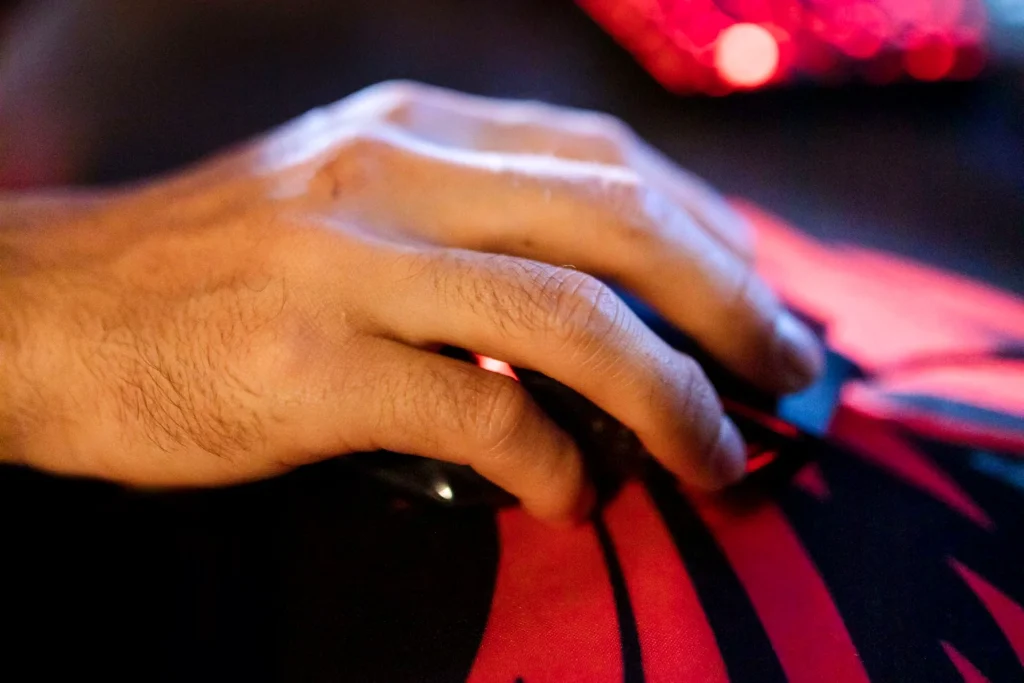
Drag clicking is a technique where you slide one finger across a mouse button instead of pressing it, and friction makes the button vibrate enough to register many clicks from one motion. It produces 20–35 clicks per second on a suitable mouse — why Minecraft players use it for bridging, and why servers treat it as a ban risk.
That one paragraph is the whole technique in miniature. The rest of this guide is the part most guides skip: exactly how the vibration works, why it fails on most mice, how to do it step by step, which mice genuinely support it (with verified specifications), what tape actually changes, what the numbers honestly mean, and where the server rules draw the line. If you are new to clicking techniques in general, start with our guides on what a CPS click speed test is and how to improve click speed — drag clicking sits at the extreme end of that world, and it makes far more sense once you understand the basics.
What Drag Clicking Actually Is
Drag clicking means dragging a fingertip across a mouse button instead of pressing it up and down. As your fingertip slides over the button’s surface, friction makes the button vibrate — pressing and releasing in tiny, rapid oscillations. Each oscillation can register as a click. One smooth drag of the finger can therefore produce a burst of many clicks, far more than a single press ever could.
It is sometimes called tap clicking or fazer tapping, but the mechanism is the same in every version: friction creates vibration, and vibration creates clicks. The finger is not really “clicking” in the normal sense at all. It is exciting the switch the way a bow excites a violin string — one continuous motion producing many small events.
That is the first thing to understand about drag clicking, because it explains almost everything else: the result depends far more on the mouse and the surface than on your hand speed. Two players with identical hands will get wildly different numbers on different mice, and the same player can double their score just by changing tape or switching to a different mouse. If you have ever watched a Minecraft player place blocks behind themselves at impossible speed while sprinting across a void, you have probably seen drag clicking in action. The numbers look unreal — thirty, forty, sometimes far more clicks per second — and the technique looks almost like cheating. It is not software, and it is not a macro. But it is also not quite the same kind of skill as the other clicking techniques, and that distinction is exactly why servers treat it so differently.
How It Works: Friction, Switches, and Debounce
Three things have to line up for drag clicking to work:
- Friction between finger and button. Your fingertip needs to grip the button surface enough to catch and release repeatedly as it slides. Bare, smooth plastic is usually too slippery. Dry skin grips better than damp skin, which is one reason drag clickers obsess over hand dryness — and one reason tape exists, covered below.
- A switch that can keep up. Every mouse switch has some amount of bounce: when it activates, the signal can flutter on and off for a fraction of a millisecond before settling. Normally the mouse’s firmware filters this out with debounce time — a small delay after each registered click during which further signals are ignored. Our polling rate and debounce guide explains debounce in depth. For drag clicking, low debounce is everything: a mouse with a 10-millisecond debounce will swallow most of a drag’s vibrations, while a mouse with debounce adjustable down to around 4 milliseconds or less will let far more of them through. Glorious’s software, for example, lets you lower debounce from 16 milliseconds to 4 milliseconds, which is one reason the Model O and Model D are the most recommended drag-clicking mice in the community (PC Gamer).
- A button that can vibrate freely. The button needs enough flex and travel to oscillate. Stiff, heavy buttons with long, mushy travel absorb the vibration instead of passing it on. Light, slightly flexible buttons on mice with the right switch tolerances are the ones drag clickers seek out. Wider, flatter buttons give your finger more room to drag evenly; a heavily curved or narrow button makes the drag uneven and kills the vibration.
When all three line up, a single drag produces a burst of clicks. When any one of them is missing, the same drag produces almost nothing — which is why beginners often try drag clicking on an office mouse, get three clicks, and conclude the technique is a myth. It is not a myth. It is a hardware-dependent trick.
Mechanical vs Optical Switches: Why the Answer Is “It Depends”
Here is a layer most guides get wrong. Mechanical switches work by metal contacts touching, and those contacts physically bounce — that bounce is exactly what debounce filters out, and what drag clicking exploits. Optical switches work differently: an infrared beam is interrupted to register the click, so there is no metal contact and no contact bounce at all.
That does not mean optical mice cannot drag click. It means the mechanism shifts: on an optical mouse, drag clicking depends on the switch’s actuation and reset travel and on how freely the button flexes, not on contact bounce. That is why results vary so much even among optical mice. Bloody’s Light Strike optical switches are widely reported as excellent for drag clicking, while community reports on Razer’s optical mice are mixed — some players drag click fine on them, others get almost nothing. The lesson is practical, not theoretical: switch type alone does not predict drag clicking. You have to test the specific mouse, which is why the comparison table below lists real models and what the community reports about each, instead of a generic “optical is better” claim.
How to Drag Click, Step by Step
This is the section the old version of this article was missing. Follow it in order, on a CPS test — not on a competitive server.
- Clean the button and your finger. Wipe the left mouse button with a dry cloth and wash and dry your hands. Grease and sweat make your finger slide instead of catching, and a glossy button kills friction before you start.
- Hold the mouse steady. Grip the mouse with your thumb and ring finger on the sides, middle finger resting on the right button. Your index finger does the dragging; the rest of your hand is an anchor. If the mouse moves while you drag, the vibration never builds.
- Place your index finger flat. Do not use just the fingertip. Lay the finger flat across the upper-rear part of the left button, from the first knuckle down, so the full contact surface is on the button. A flat finger catches more than a pointed one.
- Press lightly — about half strength. Press your finger into the button with roughly 50 to 60 percent of your pressing strength. This is the step most beginners get wrong. Too much pressure holds the button down and stops it bouncing. Too little and your finger slides without catching. You are looking for the exact point where the button starts to vibrate under your finger.
- Drag in one smooth motion. While holding that pressure, slide your finger across the button in a steady, medium-speed sweep. Do not click first and then drag — that is the most common mistake. Do not actively press during the drag. Your finger should feel like a stone skipping across a pond: lightly bouncing, never digging in. You should feel the button rattling and vibrating under your finger, and hear rapid clicking.
- Curve your wrist. Your finger is not long enough to cover the whole button on its own. If you keep your wrist straight, the drag runs out of finger halfway. Curve your wrist with the motion and you can cover the full length of the button while keeping pressure even.
- Lift and repeat. Return your finger to the starting position and drag again. Each forward drag is one multi-click burst. Between drags there is a brief pause — that pause is normal and it is why drag clicking is a burst technique, not a steady one.
Which Direction? Back to Front or Front to Back?
The guides disagree on this, and that disagreement is worth knowing about. Dot Esports teaches dragging from back to front; the CPS Tester guide teaches dragging slowly backwards, from front to back; other guides teach rear to front. Both directions work, because the vibration comes from the stick-and-slip of friction, not from the direction of travel. What matters is light, even pressure and a steady speed. If one direction produces nothing after a few sessions, try the other before blaming your mouse — the angle of your finger changes with direction, and a small change in angle is often all it takes.
Short Drag vs Long Drag
Where you start the drag changes what it is good for:
| Style | Where you start | What it is for |
|---|---|---|
| Short drag | Middle of the button | Short, controlled bursts — a few clicks at a time, useful in shooters for semi-automatic fire without wasting ammo |
| Long drag | Very back of the button | Maximum clicks per drag — the bridging style, used to place a long line of blocks in one motion |
Long drag clicking is what Minecraft bridging uses: one long sweep, dozens of blocks. Short drag clicking is the controlled version, and it is the one to learn first — it teaches you the pressure and the vibration without the chaos of a full-length drag.
Double Drag Clicking
Some players drag with two fingers at once — index and middle finger side by side on the same button. This is called double drag clicking. It can produce even higher bursts, but it is harder to control, harder to keep even, and it wears the button faster. Learn the single-finger drag first. Double dragging is a variation for players who already have the basic motion down, not a shortcut around learning it.
What Tape Actually Does (and What It Doesn’t)
Tape is the most misunderstood part of drag clicking. Here is what it really does:
Grip tape on the button — usually a small strip of textured tape, sometimes sold specifically for this purpose, sometimes just electrical tape or sports grip tape — increases friction between your finger and the button. More friction means a stronger, more consistent vibration, which means more registered clicks per drag and less dependence on perfectly dry skin. It also protects the button surface from wear, since your fingernail is no longer scraping raw plastic.
Tape on the finger is a variation some players use instead: a small piece of tape wrapped around the dragging fingertip to create a consistent, grippy surface regardless of skin condition.
What tape does not do is create clicks on its own. Tape on a mouse with high debounce and stiff switches will still produce almost nothing. Tape amplifies a mechanism that already works; it cannot fix hardware that doesn’t. And tape does not make drag clicking “legitimate” on a server that bans it — moderators and anti-cheat systems do not care whether your drag was taped or bare.
Tape Types Compared
| Tape | What it is | Best for | Notes |
|---|---|---|---|
| Electrical tape | Cheap vinyl tape, smooth but grippy | First test — costs almost nothing, easy to remove | The standard starting point; tells you quickly whether your mouse drag clicks at all |
| Grip tape (e.g. Razer Grip Tape) | Pre-cut textured tape made for mice | Regular drag clicking | Better texture than electrical tape; looks cleaner; costs more |
| Silicone grip tape | Soft textured silicone sheets | Players who want grip without residue | Combines the low cost of electrical tape with the texture of grip tape |
| Jessops tape | Textured tape popular in the clicking community | Smoother buttons that need extra friction | Apply to the upper half of the button, leave the front edge free so the button still presses cleanly |
| Three-layer tape | Three layers with lines etched into the middle layer | Maximum grip | A community method for the most stubborn buttons; fiddly to make |
Two practical tricks from the community: if you do not want tape visible on your mouse, rub the adhesive side of a piece of tape onto the button shell — the surface gets stickier while the mouse still looks clean, though you have to reapply it once it dries out. And whatever tape you use, start with a small strip of ordinary electrical tape before spending money on specialty tape or a new mouse. It will tell you within minutes whether your mouse drag clicks at all.
Which Mice Actually Drag Click? A Verified Comparison
Every “best drag clicking mouse” list on the internet repeats the same few names. Here they are with specifications verified from manufacturer and review sources in November 2026 — and an honest note on what the community actually reports about each one.
| Mouse | Switch | Weight | Debounce | Price (Nov 2026) | Drag clicking verdict |
|---|---|---|---|---|---|
| Bloody A70 | Light Strike infrared optical, 0.2 ms response, 20M clicks | ~100 g | None (optical) | ≈ €41 (Alza, Nov 2026) | The budget pick — the most recommended drag-clicking mouse in the community, and the cheapest route in |
| Glorious Model O | Omron mechanical, 20M clicks | 67 g | Adjustable 16 ms → 4 ms in software | $49.99 list | The classic — debounce adjustment is the reason it drag clicks so well |
| Glorious Model D | Omron mechanical, 20M clicks | 68 g | Adjustable 16 ms → 4 ms in software | $49.99 list; $44.99 at Best Buy (Nov 2026) | Same internals as the Model O in an ergonomic right-handed shell |
| ROCCAT Kone Pro | Titan Optical, 100M clicks | 66 g | None (optical) | $79.99 launch MSRP (2021); ~$39.99 at retail (PCWorld, Apr 2025) | Frequently recommended; optical switches with a light, flexible button |
| Razer Viper V3 Pro | Gen-3 Optical, 90M clicks, 0.2 ms actuation | 54 g | None (optical) | $159.99 list; ~$129 street (Nov 2026) | Mixed community reports — excellent mouse, inconsistent for drag clicking |
| Logitech G Pro X Superlight 2 | LIGHTFORCE hybrid optical-mechanical | 60 g | None (optical actuation) | $159.99 list; ~$155 street (Nov 2026) | Mixed community reports — superb for butterfly and jitter, not a proven drag-clicking pick |
A few things to note about this table. First, prices are list or street prices as verified in November 2026 and will change — check before buying. Second, weight is mostly irrelevant for drag clicking: a drag burst lasts a second or less, so unlike jitter or butterfly clicking, where hand fatigue matters, a heavier mouse drag clicks just as well as a light one. Third, two mice of the same model can behave differently — manufacturers revise switches between production runs, so treat any recommendation as a starting point for research, not a guarantee.
One honest warning: a mouse that drag clicks well is also a mouse more prone to the double-click fault as its switches wear. The same low debounce that lets drag vibrations through also lets worn-switch bounce through as phantom double clicks in normal use. Heavy drag clicking shortens switch life noticeably — that is a cost, not a footnote, and it is one reason many players keep a separate mouse for bridging practice rather than wearing out their daily driver. Wear caused by dragging, and modifications such as grip tape, may also not be covered by your warranty.
If you want the deeper comparison behind this table, our best mouse for CPS guide covers the same models for general clicking, and our how to click faster guide explains how to choose between them.
Realistic CPS Ranges: What the Numbers Actually Mean
Drag clicking numbers are the most exaggerated figures in all of clicking culture, so here are honest, approximate ranges drawn from community reports and the guides that measure them:
| Level | What you will see | What it really means |
|---|---|---|
| A first successful drag | Roughly 15–25 clicks per second in a short burst | One drag on a suitable mouse; 15–40 clicks in a single drag is the usual range |
| A practiced drag clicker | Roughly 25–35+ clicks per second in bursts | Repeatable on good hardware with tape and clean technique |
| Peak bursts | 30–60 clicks per second for a fraction of a second | A half-second window inside a longer test — nobody sustains this |
| A 10-second test average | Lower than the burst numbers | The pauses between drags pull the average down, so the test score is always below the burst speed |
That last row matters because it explains why drag clicking scores on CPS tests look absurd. A 10-second test that includes a few half-second drag bursts will show a high average even though most of the ten seconds were ordinary clicking. The score is real arithmetic — total clicks divided by total seconds — but it does not mean the player clicked at that speed continuously. Anyone comparing scores should ask what the test actually measured: sustained speed, or a few bursts averaged in.
One more honesty check: some guides claim drag clicking reaches 100+ CPS. Treat that as an outlier, not a target. The repeatable range even on ideal hardware is 30–60 CPS in short bursts, and the guides that measure carefully (CPS Tester, Dot Esports) put practiced drag clicking at 20–35 CPS. A 100 CPS claim usually comes from a sub-second spike on a single drag, not from anything a player can repeat.
For comparison with the other techniques, our CPS for Minecraft PvP guide puts jitter clicking at roughly 10–14 CPS and butterfly clicking at roughly 15–25 CPS, both sustained. Drag clicking beats both on paper and loses to both in actual combat, for reasons covered next. And if you want the verified record for mouse clicking — the fastest confirmed human CPS ever measured — see our CPS world records guide, which separates the real records from the inflated claims.
Drag vs Butterfly vs Jitter: The Honest Comparison
| Aspect | Drag clicking | Butterfly clicking | Jitter clicking |
|---|---|---|---|
| Peak burst speed | Highest (20–35+ CPS) | High (15–25 CPS) | Medium-high (10–14 CPS) |
| Sustained speed | Lower — pauses between drags | High | Medium |
| Depends on the mouse | Very much | Somewhat | A little |
| Muscle tension | Low | Low–medium | High |
| Mouse wear | Highest (coating and switch) | Medium | Medium |
| Aim while clicking | Difficult | Moderate | Difficult |
| Ban risk on competitive servers | Highest | Medium | Low–medium |
Many players use more than one technique: butterfly or normal clicking for combat, and drag clicking for short building bursts where aim matters less. If your mouse does not drag click well, butterfly clicking is the closest alternative that works on almost any mouse, and jitter clicking is the option that works on virtually any mouse at all. Your grip and hand position matters for all three — the wrong grip makes every technique harder than it needs to be.
Why Drag Clicking Is a Bridging Tool, Not a PvP Technique
This is the part most hype guides skip. Drag clicking’s real home is bridging in Minecraft — techniques like godbridging, breezily bridging, moonwalking, and telly bridging, where the player places blocks rapidly beneath or behind themselves while moving. In bridging, raw placement speed is the whole job, and aim barely matters: you are clicking in one rhythm, in one direction, at blocks directly under you.
In PvP, drag clicking is nearly useless, for three reasons:
- You cannot aim while dragging. Your hand is busy sliding across the button in a fixed motion. The moment you need to track a moving opponent, adjust your crosshair, and time hits, the drag falls apart.
- It is burst-only. A PvP fight lasts seconds, and drag bursts last fractions of a second. Between bursts you are repositioning your finger, and during that gap you are not clicking at all.
- It produces inconsistent timing. PvP rewards controlled, rhythmic clicks. Drag bursts are inherently uneven — a flurry, then nothing — which makes hit registration and knockback unpredictable. On Java 1.9 and later, weapon cooldowns limit how fast hits register anyway, so ultra-high CPS adds little in a fight even when it lands.
So the honest summary is: drag clicking is a specialist tool. For bridging, it is genuinely the best method there is. For PvP, jitter and butterfly clicking are better in every way that matters. Anyone selling drag clicking as a PvP advantage is selling you the wrong tool for the job.
Where Drag Clicking Actually Helps
| Situation | Why it helps |
|---|---|
| Minecraft bridging (godbridge, breezily, moonwalk, telly) | Places many blocks in a short moment — the technique’s real home |
| CPS tests and 1-second challenges | Highest possible short-burst scores |
| Idle and clicker games | Fast bursts where aim matters less — Cookie Clicker and similar games reward raw click volume |
| Semi-automatic fire in some shooters | Short drags give controlled bursts without wasting ammo — but only where the game allows it |
Why Servers Ban It: The Honest, Non-Alarmist Version
Here is where drag clicking gets serious. Many competitive Minecraft servers restrict or ban drag clicking, and players lose accounts over it. Why?
The core issue is detection. Anti-cheat systems watch click patterns, and drag clicking produces patterns that look inhuman: extremely high click rates, bursts of clicks at near-perfectly even intervals, and click counts that no finger could produce by pressing. Anti-cheat cannot reliably tell the difference between a drag click burst and a macro — software that generates clicks automatically — because at the level of input data, they look very similar. Some servers therefore treat drag clicking the same way they treat macros: as automation-adjacent input, whether or not a human finger was involved.
What Hypixel Actually Says
Hypixel is the server most players ask about, so here is what its official rules actually say. Hypixel’s own allowed-modifications post states that modifications are disallowed if they “automate player gameplay actions (whether it is Minecraft modifications, external software or hardware) — this includes (but is not limited to) auto/burst clicking buttons or macros” (hypixel.net, Allowed Modifications thread). Drag clicking is not named in the rules by name. What the rules ban is automation — and drag clicking’s output looks automated to the systems that enforce them.
In practice, community reporting is consistent: drag clicking that produces excessively high and consistent CPS can trigger Hypixel’s Watchdog anti-cheat and lead to a ban, even though the finger motion itself is human. Two community-reported numbers are worth knowing, both from player testing and ban reports rather than from Hypixel itself: hits on Hypixel typically stop registering above roughly 14–15 CPS, and sustained CPS above roughly 16–20 is where Watchdog investigations tend to begin. Neither number is an official threshold — Hypixel does not publish one — but they explain why a technique that produces 30 CPS bursts is dangerous on that server even when you are “only bridging”.
It is important to be precise about what this means:
- Not every server bans it. Many casual servers, single-player worlds, and practice servers do not care. Drag clicking on your own world or a server with no such rule is not going to get you in trouble.
- Many competitive servers do restrict it, and their rules pages say so — some ban it outright, others ban it in PvP modes while tolerating it for bridging, and others leave it to anti-cheat detection without a written rule. The rules vary, and they change.
- A ban is not guaranteed, but it is a real risk on servers that restrict it. “I was only bridging” is not a defense if the server’s rule covers all modes, and appeals rarely succeed when anti-cheat logs show drag-level click patterns.
- The risk is yours to assess, not ours to decide. The only safe approach is boring but effective: read the rules of every server you play on before drag clicking there, and if the rules are unclear, ask a moderator or don’t do it.
One more distinction worth making: drag clicking is not the same as using an autoclicker or macro. Autoclickers generate clicks with no human input at all and are banned essentially everywhere in competitive play — Hypixel’s rules ban them outright, at any speed, in any game mode. Drag clicking involves a real human motion. But “a human did it” does not automatically make an input acceptable to a server — servers are allowed to draw their own lines, and drag clicking sits on the wrong side of many of them. Our are auto clickers cheating guide covers the automation side in full, including the ban ladders servers actually use.
Where Drag Clicking Is and Is Not Appropriate
| Context | Status |
|---|---|
| CPS tests and click speed challenges | Completely fine |
| Minecraft single-player and creative mode | Fine — no restrictions |
| Practice and bridging servers that allow it | Fine — check first |
| Idle and clicker games | Fine — no restrictions |
| Hypixel and most competitive Minecraft servers | High ban risk — anti-cheat flags the click pattern |
| Casual survival multiplayer servers | Varies — read the rules first |
Diagnosing Problems: Why Your Drag Produces Almost Nothing
If you have followed the steps and your drag registers only 1–3 clicks instead of many, work through this list before buying a new mouse:
- Your button surface lacks friction. Apply grip tape to the upper half of the button and try again — this fixes more “broken” drags than anything else.
- Your pressure is wrong. Too hard holds the button down; too light slides without catching. Move in small steps between the two extremes until the button starts vibrating.
- Your angle is wrong. Try dragging diagonally, or try the opposite direction. A small change in finger angle changes everything.
- Your hands or button are greasy. Wash and dry your hands, wipe the button, and try again.
- Your switch resets too slowly. Some mice simply cannot re-actuate fast enough, and no technique fixes that. This is the point where a different mouse is the answer.
A Practice Plan That Actually Works
Because drag clicking comes in bursts, the way you practise matters more than how long you practise:
- Start with the 1-second test. One drag, one second. This is where you learn what a good drag feels like — the vibration, the sound, the pressure.
- Move to the 5-second test. Practise repositioning your finger quickly between drags. Track how many drags you fit into 5 seconds as well as your CPS — faster resets usually mean higher averages.
- Compare like with like. Only ever compare your scores with your own past results on the same mouse. Drag scores depend so heavily on hardware that comparing with anyone else’s numbers is meaningless.
- Stop when your fingertip feels warm or tender. Let your skin recover before the next session. Short sessions across several days beat one long session that leaves your finger sore.
Mistakes to Avoid
- Clicking first, then dragging. Pressing the button down and then sliding is the most common beginner error. The drag itself is the click — never press first.
- Pressing too hard. Heavy pressure holds the button down and stops it bouncing. Use the lightest pressure that still catches.
- Dragging too fast. A very quick swipe gives the skin no time to grip. A steady, medium-speed drag often produces more clicks than a fast one.
- Greasy or wet fingers. Oil or sweat makes your finger slide instead of catching. Clean and dry your hands.
- Judging your mouse after one session. Finding the right angle and pressure can take a few sessions. Try small changes before deciding your mouse cannot do it.
- Comparing your score with other people’s mice. Drag scores depend heavily on hardware. Compare only with your own past results on the same mouse.
- Practising on a competitive server. Learn the motion on a CPS test or a practice server, never where a ban is on the line.
Mouse Wear, Warranty, and Your Hands
Drag clicking is hard on hardware and on skin, and both costs are worth stating plainly.
Your mouse. Drag clicking rubs against the button surface every time. Over time it wears away matte coatings and leaves shiny patches, scratches the button, and uses up switch life faster than normal clicking. A mouse that drag clicks well is also more prone to the double-click fault as its switches wear — the same low debounce that lets vibrations through also lets worn-switch bounce through as phantom double clicks. Many players keep a separate, cheaper mouse for bridging practice and keep their daily driver clean. And a practical warning from the CPS Tester guide: wear caused by dragging, and modifications such as grip tape, may not be covered by your warranty.
Your hands. Drag clicking is gentle on muscles compared with jitter clicking, because the arm stays relaxed — but repeated friction can make a fingertip sore or blistered, and the wrist curve in the drag motion can strain your wrist if you practise for long sessions. Take a short break between runs, stop if your fingertip feels tender or your wrist aches, and see a health professional if discomfort keeps coming back. No CPS score is worth an injury.
Should You Learn It?
That depends entirely on what you play:
- If you love Minecraft bridging and play on servers where it is allowed, drag clicking is a real, learnable skill that will transform your bridging. Learn it on a practice server, with tape, on a mouse you don’t mind wearing out.
- If you mainly play PvP, your time is better spent on jitter or butterfly clicking, which actually help in fights and carry far less ban risk.
- If you just want a high CPS test score, drag clicking will give you one — but understand what the number means (bursts, not sustained speed) and don’t mistake it for combat skill.
A safe way to try it: pick a mouse with adjustable debounce, put a small strip of electrical tape on the button, and practice short drags on a CPS test — not on a competitive server — until you can feel the vibration catch. If your mouse produces nothing after a few sessions of genuine attempts, it probably isn’t a drag-clicking mouse, and no amount of tape will change that. And whatever you do, read your server’s rules before taking it into a real game.
Frequently Asked Questions
Does drag clicking work on any mouse?
No. It needs a mouse with low or adjustable debounce and a button that vibrates freely. Many mice, especially office mice and some gaming mice with high factory debounce, barely respond to dragging at all. Optical mice vary the most — some drag click beautifully, others almost not at all. If yours produces almost nothing after real practice, the hardware is the limit, not your technique.
Do I need tape to drag click?
Not strictly — some players drag click bare-fingered, especially with dry hands on a grippy button surface. But tape makes it far more consistent and protects the button from wear, so most drag clickers use it. Start with cheap electrical tape before buying specialty grip tape; it will tell you within minutes whether your mouse drag clicks at all.
How many CPS can drag clicking really reach?
Approximately 25–35+ CPS in bursts for a practiced drag clicker, with peak bursts of 30–60 CPS for fractions of a second on ideal hardware. A single drag typically registers 15–40 clicks. Nobody sustains those peak numbers continuously — they are bursts averaged into a test score, not a steady rate. Claims of 100+ CPS are outliers from sub-second spikes, not repeatable results.
Is drag clicking cheating?
It is not software cheating — no macro or autoclicker is involved. But many competitive servers restrict or ban it because anti-cheat systems cannot reliably distinguish drag bursts from automated clicks. Whether it counts as cheating depends on the server’s rules, which is why checking them first matters more than any general answer.
Will drag clicking get me banned on Hypixel?
It can. Hypixel’s rules ban anything that automates gameplay actions, including auto and burst clicking, and drag clicking’s extremely high, consistent CPS can trigger the Watchdog anti-cheat even though a human finger is doing the work. Hypixel does not publish a CPS threshold, but community testing puts the danger zone at sustained CPS above roughly 16–20, and hits stop registering above roughly 14–15 CPS. On servers with no such rule, the risk does not exist — but always read the rules first.
Does drag clicking damage your mouse or void the warranty?
Yes, over time. Heavy drag clicking wears switches faster than normal clicking, wears away button coatings, and makes worn switches more likely to develop phantom double clicks. Many players accept this as the cost of the technique; some keep a separate mouse for bridging for exactly this reason. Wear caused by dragging, and modifications such as grip tape, may also not be covered by your warranty.
Drag clicking is a strange, fascinating corner of clicking culture: a hardware trick that looks like superhuman speed, built for one specific job — bridging — and punished on servers that can’t tell it apart from automation. Used in the right place, with the right mouse and a clear understanding of the rules, it is a legitimate skill. Used blindly on a competitive server, it is a fast way to lose an account. Know which situation you are in before you drag.
Pingback: Viral Clicker Games Taking Over Right Now (and What Makes Them Addictive)
Pingback: ROG Gladius IV Ace: Japan Launch Oct 30 — What Clickers Need to Know
Pingback: Best Mouse for CPS in 2026: Picks for Butterfly, Drag, and Jitter Clicking
Pingback: Butterfly Clicking Tutorial: Step-by-Step, Mistakes to Avoid, and the Best Mice for It
Pingback: Corsair SABRE v3 PRO PureVector: Smart Aim Tech Explained — Is It Worth It for Clickers?
Pingback: Minecraft Bedrock 26.60: Ice Caves, Frostbite, and What Changes for Players