
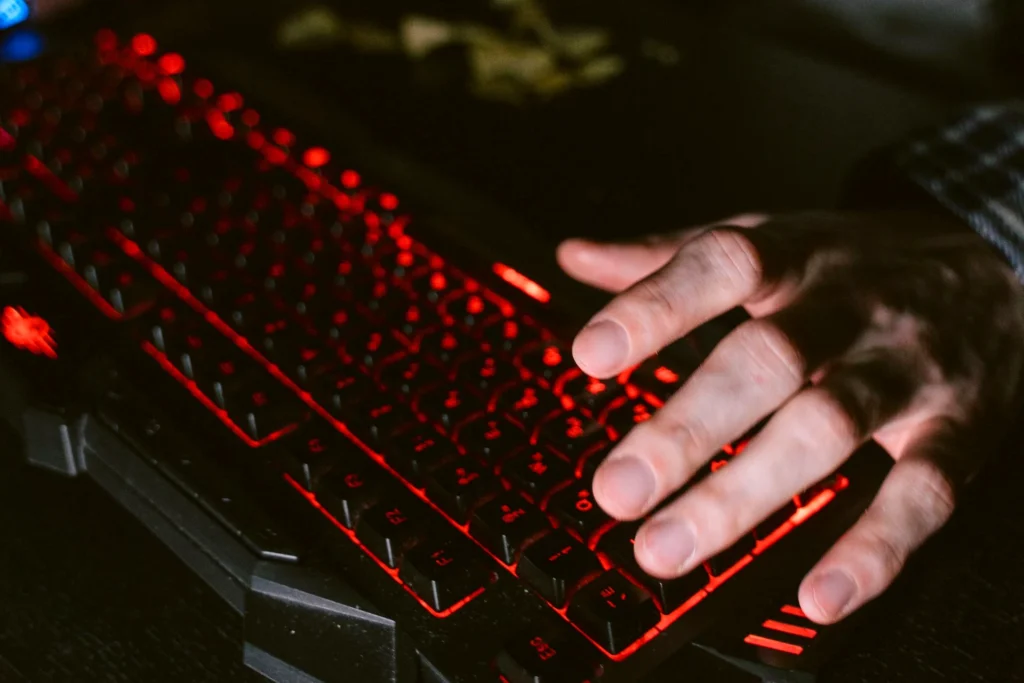
A spacebar speed test measures how many times you can press the spacebar in a set time, usually 5, 10, 30 or 60 seconds. Your score is your presses per second: total presses divided by the seconds. Most people land between 5 and 8 presses per second, and anything above 9 usually means alternating two fingers.
That one number hides a lot. Two people can both score 7 presses per second while one starts fast and fades and the other stays steady. This guide explains what it measures and how to raise yours.
What Is a Spacebar Speed Test?
A spacebar speed test is a timed challenge: press the spacebar as many times as you can before the timer runs out. The tool counts every genuine press and divides the total by the seconds, giving your score in presses per second — often written as CPS or SPS. It is the keyboard version of a mouse CPS test: the idea is identical, but the muscles, hardware and techniques differ, so the two scores should never be compared directly. Most tests run in your browser.
How a Spacebar Speed Test Counts Your Presses
Most tests count a press when the key is pressed down and released again. Holding the spacebar down does not help: your operating system fires automatic repeat signals when a key is held, and every serious test ignores those repeats. One press, one count. You also need a real keyboard — clicking the screen or tapping a phone does not count, because only the Space key itself is listened for.
How to Take a Spacebar Speed Test, Step by Step
- Sit the way you normally play. Same chair, same desk height, same keyboard.
- Click the test area once first. This gives the page focus so pressing Space does not scroll the page.
- Pick 10 seconds for your first run. The standard benchmark.
- Warm up with two throwaway runs. Cold hands run slow.
- Press Space to start. The timer begins on your first press, and that press counts.
- Repeat three to five times and take your average. One run is mostly luck.
What Is a Good Spacebar Speed?
There is no official worldwide average, because scores depend on the keyboard, the technique, the test length and who is taking the test. The best-known dataset comes from ArealMe, which published a summary dated 1 May 2021 reporting a weighted average of about 6.27 presses per second across more than 15,000 samples (about 6.50 for users from the United States). Treat that as historical context, not an official average.
The table below combines the major sites’ ranges; the press counts are simple maths, not separate population data.
| Level | Presses per second | Presses in 5 seconds | Presses in 10 seconds | Presses in 30 seconds | Presses in 60 seconds |
|---|---|---|---|---|---|
| Beginner | Under 5 | Under 25 | Under 50 | Under 150 | Under 300 |
| Average | 5–7 | 25–35 | 50–70 | 150–210 | 300–420 |
| Fast | 7–9 | 35–45 | 70–90 | 210–270 | 420–540 |
| Very fast | 9–12 | 45–60 | 90–120 | 270–360 | 540–720 |
| Elite | 12+ | 60+ | 120+ | 360+ | 720+ |
60 clicks in 10 seconds equals 6 presses per second, close to the 6.27 benchmark. A hundred in 10 seconds is 10 per second — fast, but only if you can repeat it. Never compare a 5-second score with a 60-second one; for tracking progress, use the 10-second test.
No official, independently verified world record exists for spacebar pressing — figures around 14 to 15 per second circulate in speed-testing communities but are unverified. Mouse clicking does have a verified record — see our CPS world records guide.
Your Score Is More Than One Number: Average, Peak and Drop-Off
A single average hides the shape of your run. Three numbers matter: your average (total presses ÷ seconds), your peak second (your fastest second), and your drop-off (how much you slowed from first to last second). Take a 5-second run of 11, 11, 10, 9 and 9: average 50 ÷ 5 = 10.0, peak 11, drop-off (11 − 9) ÷ 11 = about 18%.
- High peak, big drop-off (over 20%). You have speed but run out of steam. Relax and hold a steady rhythm.
- Low peak, small drop-off. Steady but capped. Alternating two fingers is the next step.
- Uneven seconds. Your rhythm is breaking. Tap to a steady beat.
- One very tall second. A sudden spike can be a double press from the keyboard.
- If your test shows only an average, run five times: a cluster like 61, 64, 62, 63 and 78 tells you 78 was a lucky outlier.
Spacebar Test vs CPS Test: What Is the Difference?
Both measure repeated inputs per second, but different hardware and muscles — which is why the same number means something different on each.
| Spacebar test | Mouse CPS test | |
|---|---|---|
| What you press | Spacebar key | Mouse button |
| Usual finger | Thumb, or two fingers alternating | Index finger, or two for butterfly clicking |
| Common fast method | Alternating two fingers or thumbs | Jitter or butterfly clicking |
| Typical casual range | About 5–8 presses per second | About 5–8 clicks per second |
If your spacebar score is much lower than your mouse score, your keyboard may need more force, or your thumb technique is holding you back — our how to click faster guide covers the mouse side.
Where Spacebar Speed Actually Matters in Games
In Minecraft, jumping, sprinting and bridging all run through the spacebar. In PvP, a steady 7+ presses per second keeps your jump rhythm from breaking down under pressure; above 9 you are in a bracket most opponents cannot disrupt. Our CPS for Minecraft PvP guide explains how click speed and movement work together in a fight. In rhythm and platform games, repeated jumps reward a thumb that keeps a fast, even beat. In browser and one-key games, the spacebar is often the only control, so a faster thumb is a direct advantage.
How to Press the Spacebar Faster
Alternate two fingers. One thumb tops out around 7 presses per second for most people. Two index fingers taking turns gets most people past 10 within a few attempts — the single biggest change you can make, and the keyboard version of butterfly clicking.
Hit the middle of the bar. The spacebar rides on stabilisers, small metal bars underneath that keep it level. The middle presses cleanest; the far ends tilt and can cost you actuations.
Tap, do not push. Most switches actuate around halfway down. Bottoming out wastes travel and slows the reset, so aim for light taps that just clear the actuation point.
Rest your palms. Plant both palms on the desk and let your fingers do the travel — your grip and hand position matter on a keyboard too.
Find a rhythm. A cadence you can hold beats a frantic opening that fades at second four.
Warm up, then practise in short sessions. Two throwaway runs before your real attempt are worth most of a press per second. Our click speed training plan and improve click speed techniques guides show how to structure practice, and jitter clicking is the mouse-side way past the same ceiling.
How Your Keyboard Changes Your Score
Your keyboard can move your score before technique comes into it — the spacebar is the widest key, and its build matters most. Linear mechanical switches actuate partway through the travel and reset quickly, which suits rapid taps; membrane and scissor keyboards need a fuller press and release, so the same hand scores lower on a laptop. Worn stabilisers drop presses near the ends. Debounce time — the few milliseconds a keyboard ignores after each signal — can lose presses your fingers made. Polling rate caps the top end too: a keyboard reporting every 8 milliseconds at 125Hz can merge two presses into one event. We explain both in our polling rate and debounce guide. The test also checks a faulty spacebar: press slowly, about once a second, counting out loud. Lower than your count means presses are not registering; higher means extra presses, which mechanical users call chatter.
Mistakes to Avoid
- Judging yourself from one run. Take three to five runs and use the average.
- Comparing different durations or keyboards. Keep both fixed when tracking progress.
- Sprinting the first two seconds. A steady rhythm wins.
- Pressing at the ends of the bar. The stabilisers bind at the edges.
- Bottoming out every press. Hard slams waste travel and tire your hand.
A Simple 2-Week Practice Plan
Ten minutes a day is enough with the same setup and the same measurement. Week 1 — baseline and technique. Day 1: take five 10-second runs with your normal thumb and write down the average; that is your baseline. Days 2–4: practise the two-finger method for a few minutes, then do three 10-second runs with it. Days 5–7: alternate days between your old method and the new one. Week 2 — rhythm and stamina. Days 8–10: three 5-second runs for peak speed, then three 30-second runs, watching your drop-off. Days 11–13: five 10-second runs a day with your better technique. Day 14: retest your baseline the same way and compare. A gain of 1 to 2 presses per second in two weeks is a solid result.
Safety: Stop If It Hurts
Fast repeated pressing can strain your hand, wrist and forearm. Take a short break between runs, and a longer break if your fingers feel sore, stiff, tingly or numb. Shake your hands out, stretch your fingers, and do not push through pain. If discomfort keeps coming back, rest for a day or two and see a health professional if it does not settle. No test score is worth an injury.
The TikTok Spacebar Challenge
The spacebar test went viral on TikTok: users film themselves pressing the spacebar as fast as they can in a set time — usually 30 seconds — and post the score, often with the hashtag #spacebarcounter. One counter site reports the challenge passing 4.5 million views on TikTok, with weekly rounds where people record themselves taking the 30-second test. The format is the same test this guide covers, dressed up as a social game: open a counter, press as fast as you can, post your number, and challenge a friend to beat it.
That is the whole appeal, and it is also the whole trap. A TikTok clip shows one number with no context — no round length, no keyboard, no average. This section gives you the context the clips leave out, so you can enjoy the challenge without letting a viral number make you feel slow.
How the challenge works
The format is consistent across the videos and the counter sites:
- Open a spacebar counter tool. Free browser tools count your presses and show a live total. Most let you pick a time window.
- Pick a round length. TikTok clips usually use 30 seconds, because the weekly challenge format is a 30-second test. Shorter 5- or 10-second rounds also appear, because they fit short videos.
- Press the spacebar as fast as possible. The timer starts on your first press on most tools, and every press counts.
- Post your total. The final number is your score, usually shared as a screenshot or a screen recording with the hashtag #spacebarcounter.
The scoring maths is the same as anywhere else in this guide: total presses divided by seconds. A 30-second round with 180 presses and a 10-second round with 60 presses both give 6 presses per second. Comparing scores only makes sense when the round length matches — a 5-second score almost always looks better per second than a 30-second one, because fatigue has not set in yet.
Named targets worth knowing
Two named challenges circulate, and both are worth understanding properly:
Sporcle’s spacebar challenge: 300 presses in one minute. Sporcle’s counter challenge asks you to press the spacebar 300 times within a minute. That works out to 5 presses per second sustained — a completion challenge, not a speed record, and a fair first goal for a beginner. (Some pages describe it as 300 in 30 seconds; that is wrong — the challenge is 300 in 60 seconds.)
Sporcle’s Spacebar Challenge II: 225 questions in 30 seconds. This is a different format, not a press-count test: a typing quiz where you type answers that appear in a list, hitting the spacebar for the answers you cannot type. It is often confused with the press-count challenge because of the 30-second timer and the 225 number. It measures typing under pressure, not spacebar speed, so do not compare its numbers with a press-count score.
For the 30-second press-count format itself, one counter site’s estimates put the average at about 170 presses, 200 presses around the 75th percentile, 228 around the 90th, and 275 in the top 1%. Another guide notes that a 30-second run at 300+ presses gets serious attention. Treat both as site estimates, not official data — but they agree with the rest of this guide: around 6 presses per second is normal, and holding 10 per second for a full 30 seconds is genuinely fast.
The average, and the “record”
Two counter-site figures agree on the average. ArealMe’s 2021 summary of 15,000+ samples reported about 6.27 presses per second, and ClickSpeedPro reports a typical speed of about 6.11 clicks per second. Both are counter-site figures, not official averages — but two independent sites landing within a tenth of each other is a useful reality check against viral hype: around 6 presses per second is normal.
The viral number is 58 presses in 5 seconds — about 11.6 per second. ClickSpeedPro calls it the current record and says it became a viral sensation on TikTok; another counter site names “Evan H” as the holder, with no evidence shown. Here is the honest position: there is no official, independently verified world record for spacebar pressing, because there is no governing body, no stated counting rules, and no independent adjudication. The 58-in-5-seconds figure is a viral claim repeated by counter sites, not a verified record, and the 14–15 per second figures circulating in speed-testing communities are unverified too. Chase 58 as a fun target if you like — but it is a viral benchmark, not a record, and a 5-second burst says nothing about what you can hold for 30 seconds. Our CPS world records guide explains the same distinction for mouse clicking, where a real verified record does exist.
How to play it fairly
The two-finger alternating technique from this guide is how the strong TikTok scores are made: alternate your index and middle fingers on the key instead of hammering with one finger, keep your hand relaxed, and use light taps. If you are competing with friends, agree on the round length, the tool, and the keyboard type before anyone starts — otherwise the comparison is meaningless. Warm up first, take five rounds and use the middle score, and film the keyboard, not just the screen: the most viral scores are often the least documented, and that tells you something. Keep sessions short and stop at pain, tingling, or numbness — the safety rules in this guide apply doubly to a challenge designed to make you press as fast as humanly possible.
Frequently Asked Questions
What is a spacebar speed test?
It counts how many times you can press the spacebar in a fixed time — usually 5, 10, 30 or 60 seconds. Your score is total presses divided by seconds.
What is a good spacebar speed?
Most people land between 5 and 8 presses per second. Above 7 is good, above 9 is fast, and 12 or more is elite. ArealMe’s 2021 summary of 15,000+ samples reported about 6.27.
How many times can you press the spacebar in 10 seconds?
At 7 presses per second, 10 seconds comes to about 70 presses. Fast players clear 90, and 120 works out to 12 per second.
Why doesn’t holding the spacebar down count?
Holding the key fires automatic repeat signals, and tests ignore every one. A press counts only when the key goes down and comes back up.
Can I take a spacebar speed test on my phone?
Some tests offer an on-screen button for phones, but most only listen for a physical Space key — keep touchscreen scores separate from keyboard scores.
Does my keyboard affect my spacebar speed?
Yes. Linear mechanical switches tap fastest; membrane boards need a fuller press, and worn stabilisers drop presses at the ends.
What is the TikTok spacebar challenge?
The TikTok spacebar challenge is a 30-second press-count test filmed and posted with the hashtag #spacebarcounter, where players press the spacebar as fast as they can and challenge friends to beat their total. There is no official verified record for it — the new TikTok section above explains the viral numbers and how to play it fairly.
The Bottom Line
Your score is your hand plus your technique plus your keyboard. Most people sit between 5 and 8 presses per second; the jump past 9 comes from alternating two fingers, and past 12 needs that technique plus the right hardware. Test the same way every time.